How to Link a New Device via QR Code
Published: 2026-01-28
Last updated: 2026-01-30
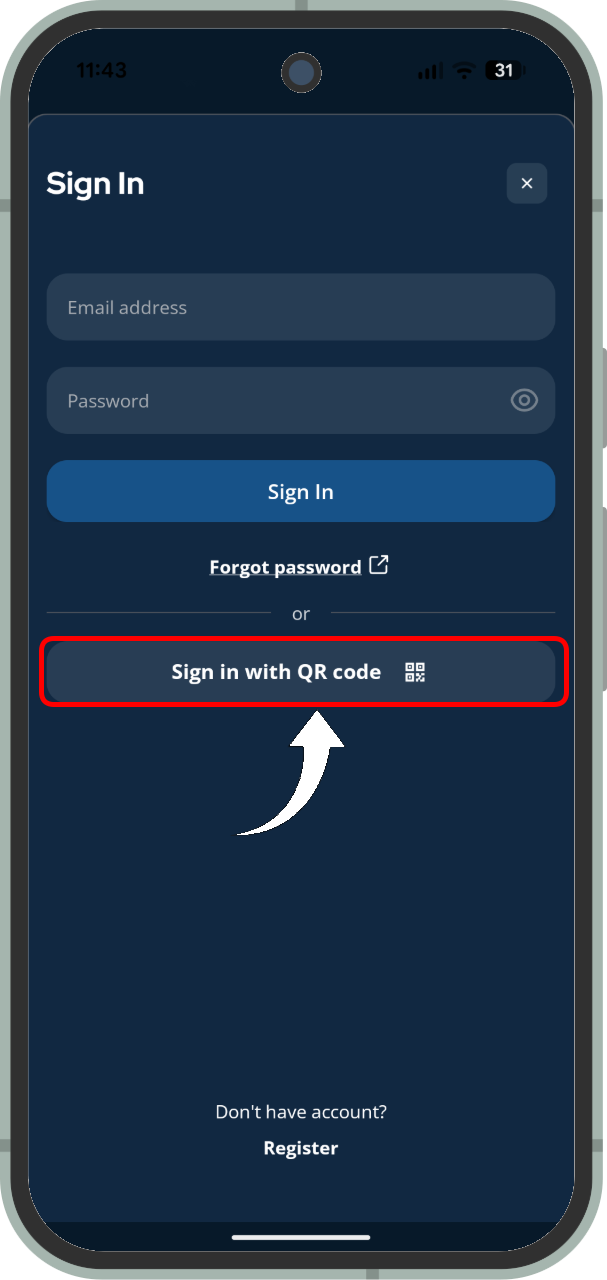
1. Prepare the New Device: Open Octohide VPN, go to Settings > Account, and tap Sign in with QR Code. (If already logged in, tap Switch Account or Sign Out first).
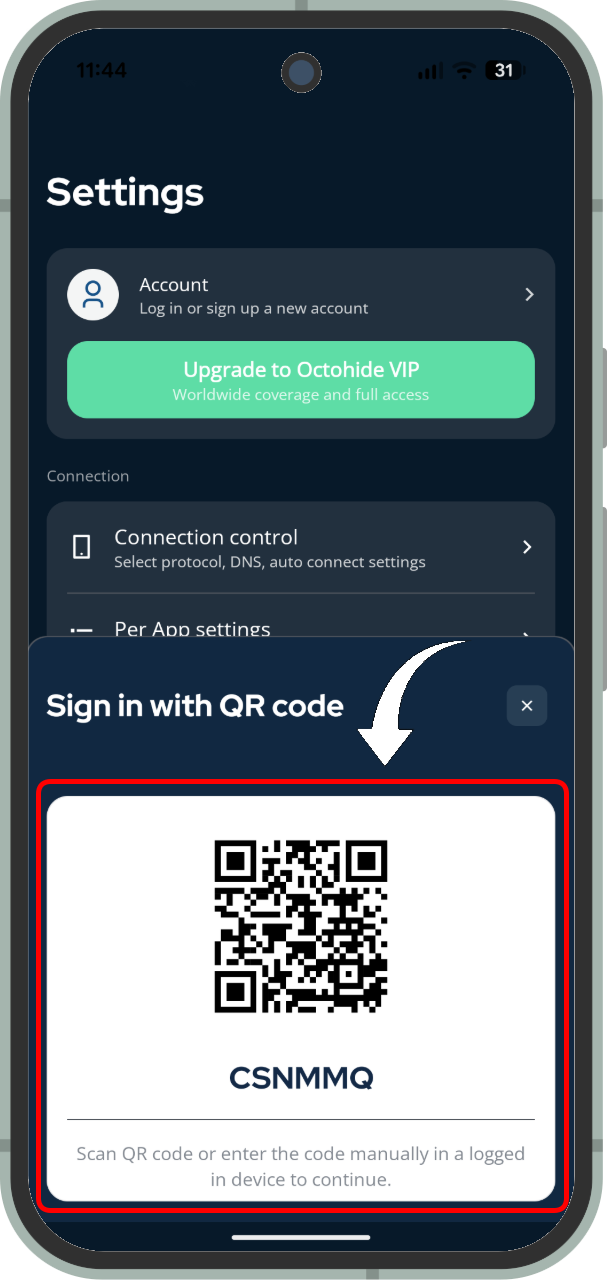
2. Access the Code: You will now see a unique QR code and a text code on your screen. Keep this window open.
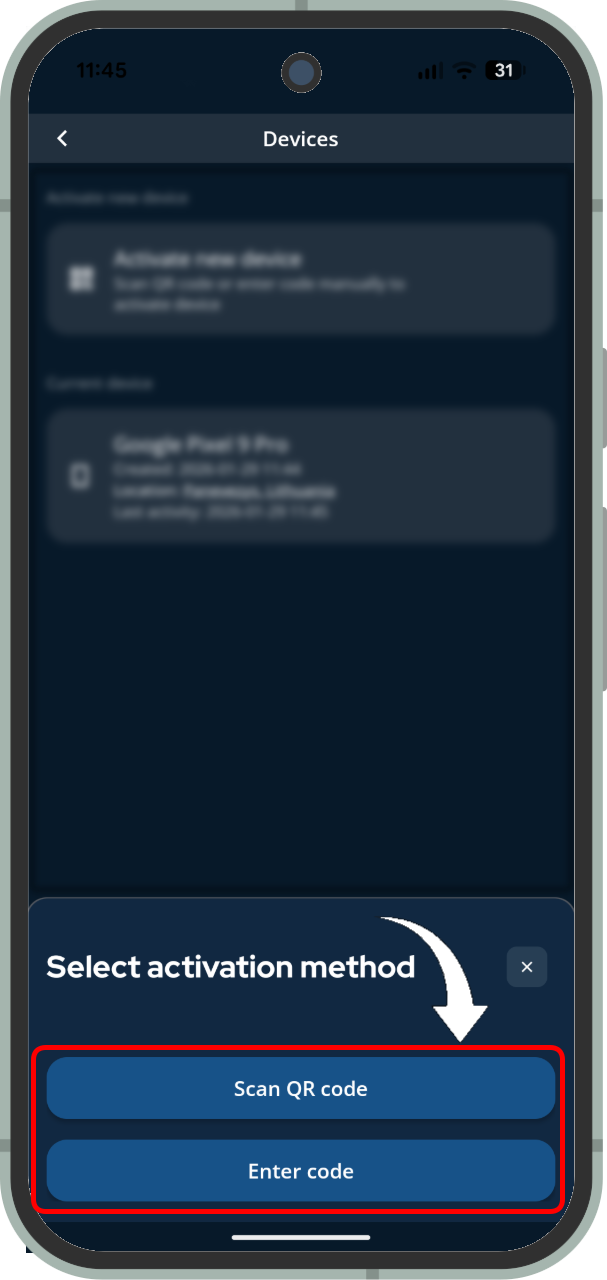
3. Authorize via Active Device: On a device where you are already logged in, go to Settings > Profile > Devices > Activate New Device.
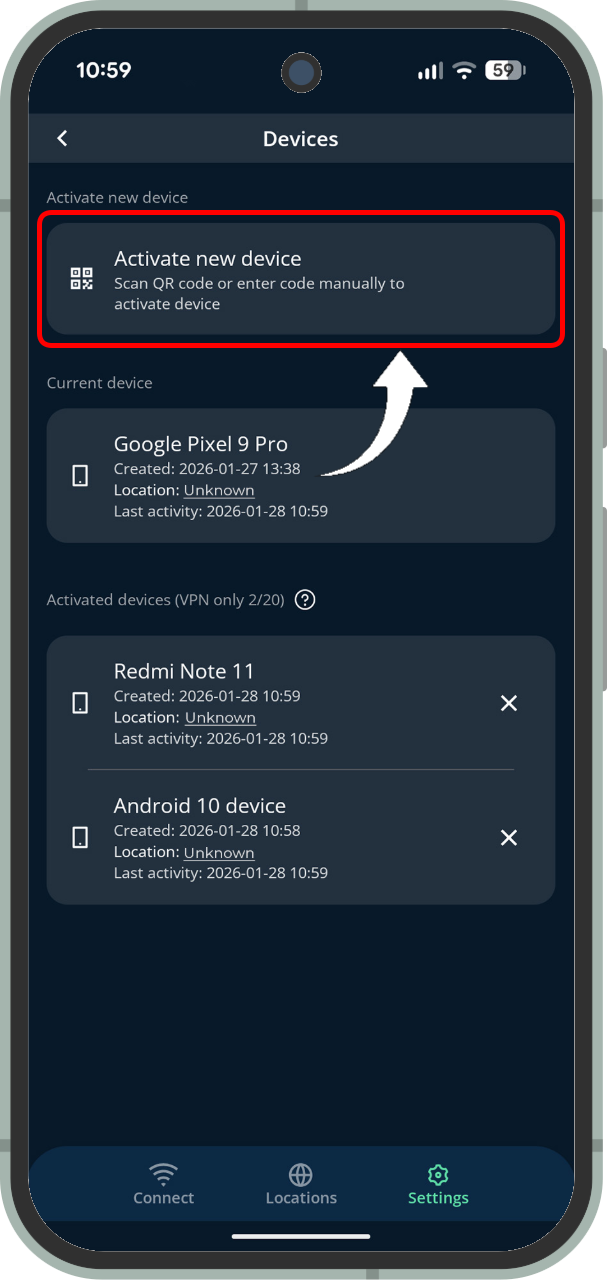
4. Scan or Enter Code: Choose your preferred method:
-
QR Code: Use your active device to scan the code on the new one.
-
Unique Code: Manually type in the text code provided.
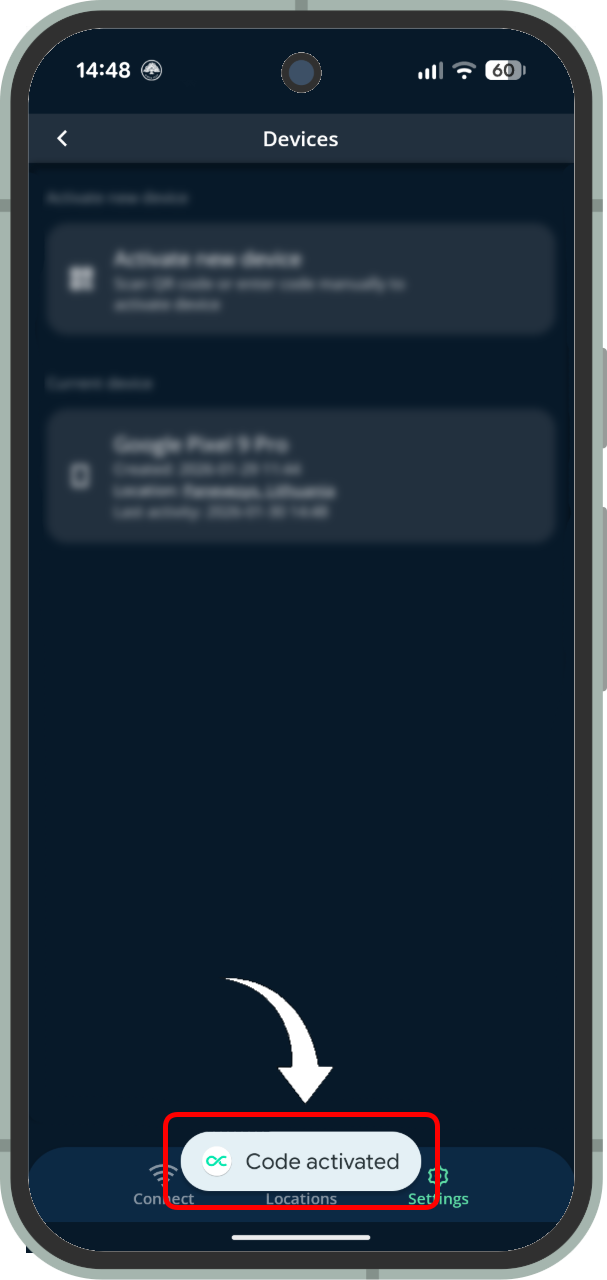
5. Success: Once done, the new device will automatically log in, instantly linking to your existing profile and VIP status (if active).