
How to Activate Your Devices Using a QR Code | Octohide VPN
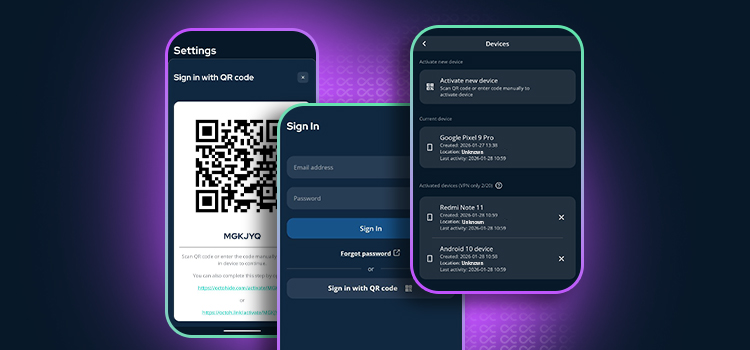
Activating a new device shouldn’t mean typing long passwords or struggling with on-screen keyboards — especially on TVs or shared devices. That’s why we at Octohide VPN introduced QR code device activation, making login faster, simpler, and more secure.
In this article, we’ll explain how QR code activation works, how to use it step by step, and why it’s one of the easiest ways to manage multiple devices with Octohide VPN.
-
Octohide VPN supports QR code login for device activation
-
Activate new devices without typing credentials
-
Works perfectly for TVs, PCs, and secondary devices
-
Available for both Free and VIP users
What Is a QR Code Device Activation?
QR code activation is a quick login method that lets you authorize a new device using a device that’s already logged in (usually your phone).
Instead of entering your email and password again, you simply:
-
Scan a QR code (or enter a code manually)
-
Confirm the login
-
Start using Octohide VPN instantly
It’s faster, safer, and ideal for devices where typing is inconvenient.
See out tutorial on How to activate a device using a QR code.
Why We Introduced QR Code Login
Many users run Octohide VPN on more than one device - phones, laptops, TVs, or shared household devices. Traditional login methods can be slow or awkward in those cases.
QR code activation solves this by offering:
-
Faster authentication
-
Reduced risk of typing errors
-
Easy login on TVs and large screens
-
Seamless multi-device experience
How to Activate a Device Using a QR Code (Step by Step)
Step 1: Open Octohide VPN on the New Device
Install and launch Octohide VPN on the device you want to activate (TV, PC, tablet, etc.).
Step 2: Choose “Sign In With QR code”
Go to Settings > Account, and tap Sign in with QR Code. (If already logged in, tap Switch Account or Sign Out first).
Step 3: Open Octohide VPN on Your Already Logged in Device
On a device where you are already logged in, go to Settings → Account → Devices → Activate new device
Step 4: Scan or Enter Code
Scan the QR code or enter the code manually displayed on the new device and confirm the login.
-
QR Code: Use your active device to scan the code on the new one.
-
Unique Code: Manually type in the text code provided.
That’s it - your device is now activated and ready to connect.
What Devices Is QR Code Activation Best For?
QR code login works especially well for:
-
Smart TVs
-
Shared or family devices
Anywhere typing is slow or inconvenient, QR codes save time.
Using QR Code Activation With Octohide VPN VIP
If you’re an Octohide VPN VIP user, QR code activation makes managing your up to 4 connected devices even easier.
With VIP, you get:
- Use on 4 devices simultaneously
- Faster and more stable connections
- Priority connections
- Premium server locations
- Unique pause function (keep the same IP for up to 24h)
Simply scan the QR code, log in, and your VIP status activates automatically on the new device.
Privacy & Security Come First
Whether you’re using Octohide VPN Free or VIP, QR code activation is protected by the same strict standards:
-
No browsing logs policy on all plans
-
Independently audited mobile security by MASA
-
Secure authentication without exposing passwords
Your privacy is never a premium feature — it’s built in by default.
Managing Activated Devices
You can view, add, or remove activated devices anytime directly from your Profile panel.
This gives you full control over where your account is used and helps keep everything secure.
Final Thoughts
QR code activation makes using Octohide VPN on multiple devices faster and more convenient than ever. No passwords, no hassle - just scan, confirm, and connect.
Whether you’re setting up a TV, adding a new laptop, or managing multiple devices with VIP, QR code login keeps things simple.